The VPS Chat Room allows you to share information with the membership. Share your thoughts on any philatelic topic you believe will be of interest to the members. This is a great place to ask other VPS members questions.

Fig.1
 |
| Fig.2
|

Fig.3 |
- ‘Click VPS Chat Room’ (Fig 1) located below the gold menu bar on the Member Page.
- You are viewing all member postings currently listed in the VPS Chat Room.
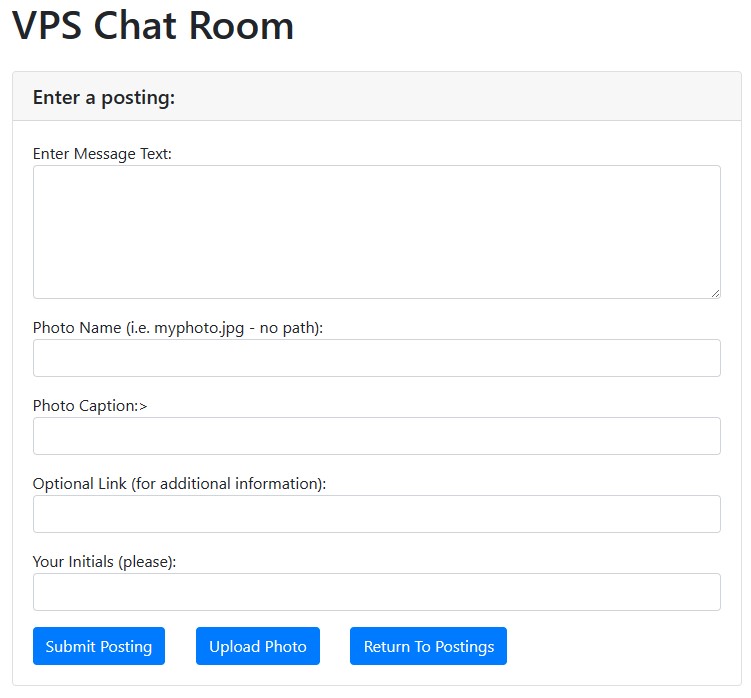
- ‘Click Enter New Posting’ in the upper center to enter your posting and (Fig 2) will display.
- Enter your posting information in (Fig 2). Be sure to include your initials at the bottom.
- ‘Click Submit Posting’ (Fig 2).
- You can submit text with or without a photo. If you have no photos to upload, Go to Step 9.
- To upload photos with your Chat Room entry, ‘Click Upload Photo’ (Fig 2) and (Fig 3) will display.
- ‘Click Browse’ (Fig 3) to select images from your file directory. (The images must be in 300dpi JPG format.) ‘Click Upload’ (Fig 3). Repeat Step 8 for each photo you choose to upload.
- ‘Click Return to Postings’ (Fig 3) and (Fig 2) will display.
- If you want to enter another posting, repeat Steps 1-8; otherwise ‘Click Home’ in the upper right to return to the Home Page.
|